To create a new Asset record in InfraLink, the user must specify, at minimum: Manufacturer + Model + Serial Number or Manufacturer + Model + Owner + Asset Tag. Project teams often choose to use Asset Tag values, as tags/labels can be affixed to hardware and easily seen or accessed after hardware is installed. Additionally, Asset Tag values can also be respresented as barcodes. Team members scan a barcode label, using the InfraLink Mobile app, and gain instance access to the matching InfraLink Asset record.
This article provides information and guidance related to the barcodes supported by InfraLink.
InfraLink-Supported Barcodes
The InfraLink mobile application supports numerous barcode types representing the most common applications, as summarized below.
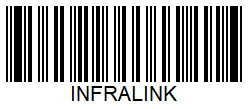
Code39 | Code 39 is a linear barcode symbology that consists of two wide bars and one wide space in each character, resulting in 40 possible characters. Setting aside one of these characters as a start and stop pattern left 39. (Also known as Alpha39, Code 3 of 9, Code 3/9, Type 39, USS Code 39, or USD-3) Info: https://en.wikipedia.org/wiki/Code_39 |
|
| Code39Mod43 | Code39Mod43 is the modified version of Code39 adding four punctuation characters, using no wide bars and three wide spaces, and expanding the character set to 43 characters. (Also known as Alpha39, Code 3 of 9, Code 3/9, Type 39, USS Code 39, or USD-3) |
|
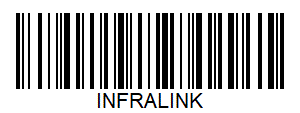
| Code93 | Code 93 is a linear barcode offering a higher density than Code 39 with enhanced data security. It is an alphanumeric, variable length symbology. |
|
Code128 | Code 128 is a high-density linear barcode symbology defined in ISO/IEC 15417:2007 and used for alphanumeric or numeric-only barcodes. |
|
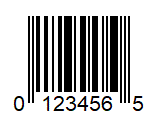
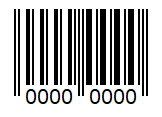
UPCE | The Universal Product Code (UPC or UPC-A) is a barcode symbology that is widely used worldwide for tracking trade items in stores, wherein 12 digits that are uniquely assigned to each trade item. UPC-E, a zero-suppressed version of UPC, was developed for use on smaller packages. With UPC-E codes, the number system digit, all trailing zeros in the manufacturer code, and all leading zeros in the product code, are omitted, leaving a 6-digit code. |
|
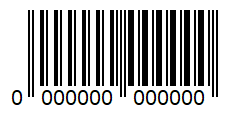
EAN13 | EAN-13 is the most commonly used European Article Number standard. The thirteen-digit barcode is used in global trade to identify a specific retail product type, in a specific packaging configuration, from a specific manufacturer. |
|
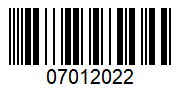
EAN8 | EAN-8, another European Article Number standard, was derived from the longer EAN-13 code for use on smaller packages. Info: edia.org/wiki/EAN-8 |
|
| INTERLEAVED2OF5 | Interleaved 2 of 5 (ITF) is a continuous two-width barcode symbology used to encode digits. Digits are encoded in pairs where the first digit is represented by five black lines, and the second digit is represented by the five white spaces interleaving those black lines. Because digits are encoded in pairs, only an even number of digits can be encoded. |
|
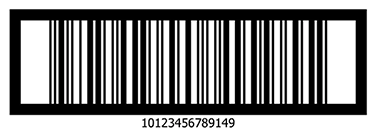
ITF14 | ITF-14 is the GS1 implementation of an Interleaved 2 of 5 (ITF) bar code which uses 14 digits to represent a Global Trade Item Number. With this format, the barcode is enclosed within a thick black border called the Bearer Bar. |
|
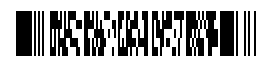
PDF417 | PDF417 is a stacked linear barcode format that is widely used in commercial and government applications. A PDF417 barcode, or symbol, consists of 3 to 90 rows, each the equivalent of a small linear barcode. |
|
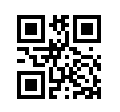
QR | A QR code, or quick response code, is a two-dimensional barcode consisting of black squares arranged in a square grid on a white background. A QR code is a machine-readable optical label that offers fast readability and greater storage capacity than linear barcodes. |
|
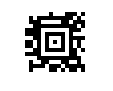
Data Matrix | Data Matrix is a two-dimensional barcode consisting of black and white "cells" or dots arranged in either a square or rectangular pattern. Because Data Matrix can encode fifty characters in a symbol that is readable at 2 or 3 mm2 (0.003 or 0.005 sq in) and be read with only a 20% contrast ratio, the format is often used to tag small items. |
|
AZTEC | Aztec, a two-dimensional barcode, consists of a bulls-eye pattern at its center with concentric square rings surrounding it. Aztec uses less space than other matrix barcodes. |
|
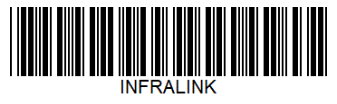

Using Barcodes and the InfraLink Mobile App
The following examples illustrate the user experience with asset/barcode labeling and the InfraLink Mobile app.
Identify Equipment and Access Open Work
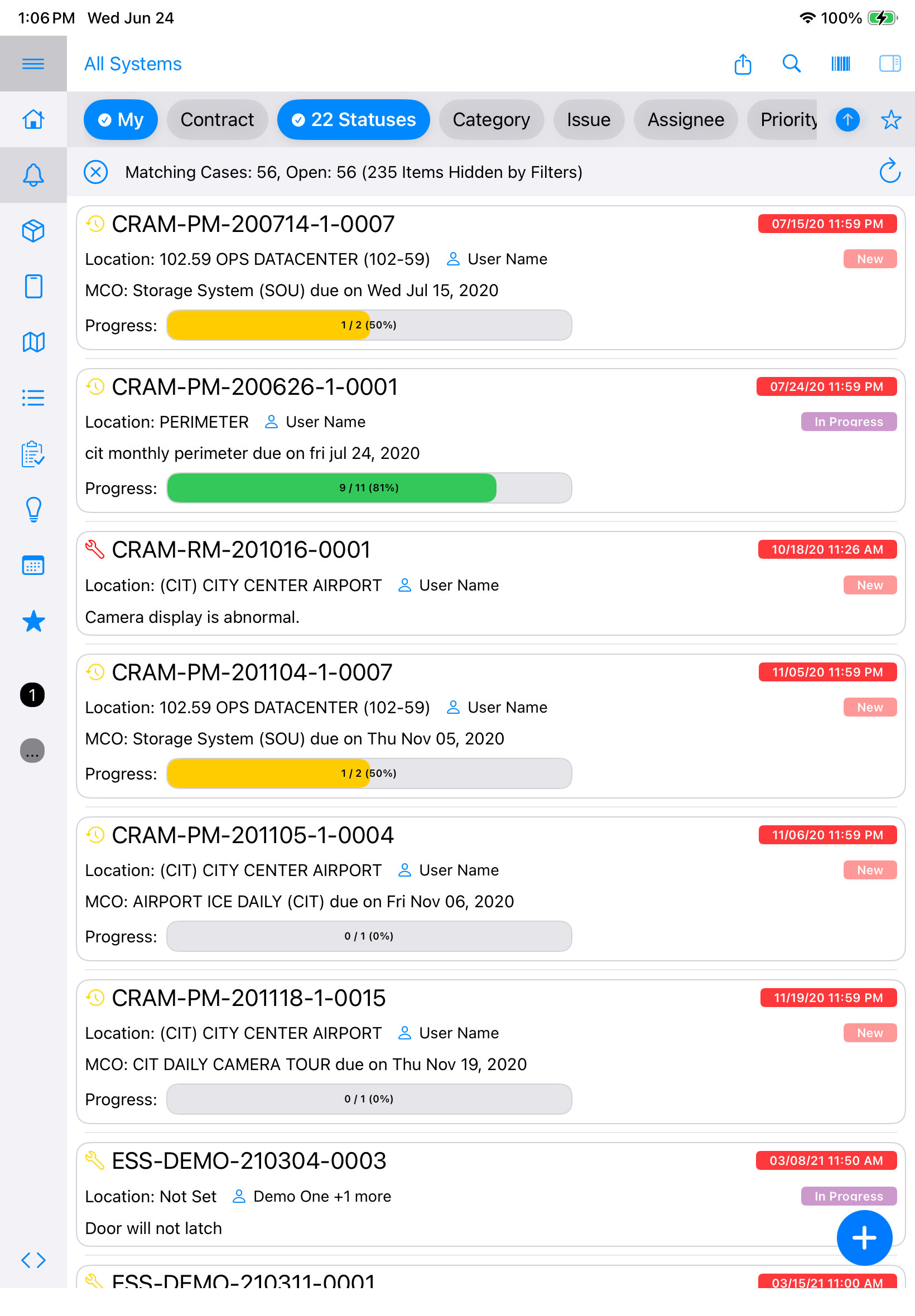
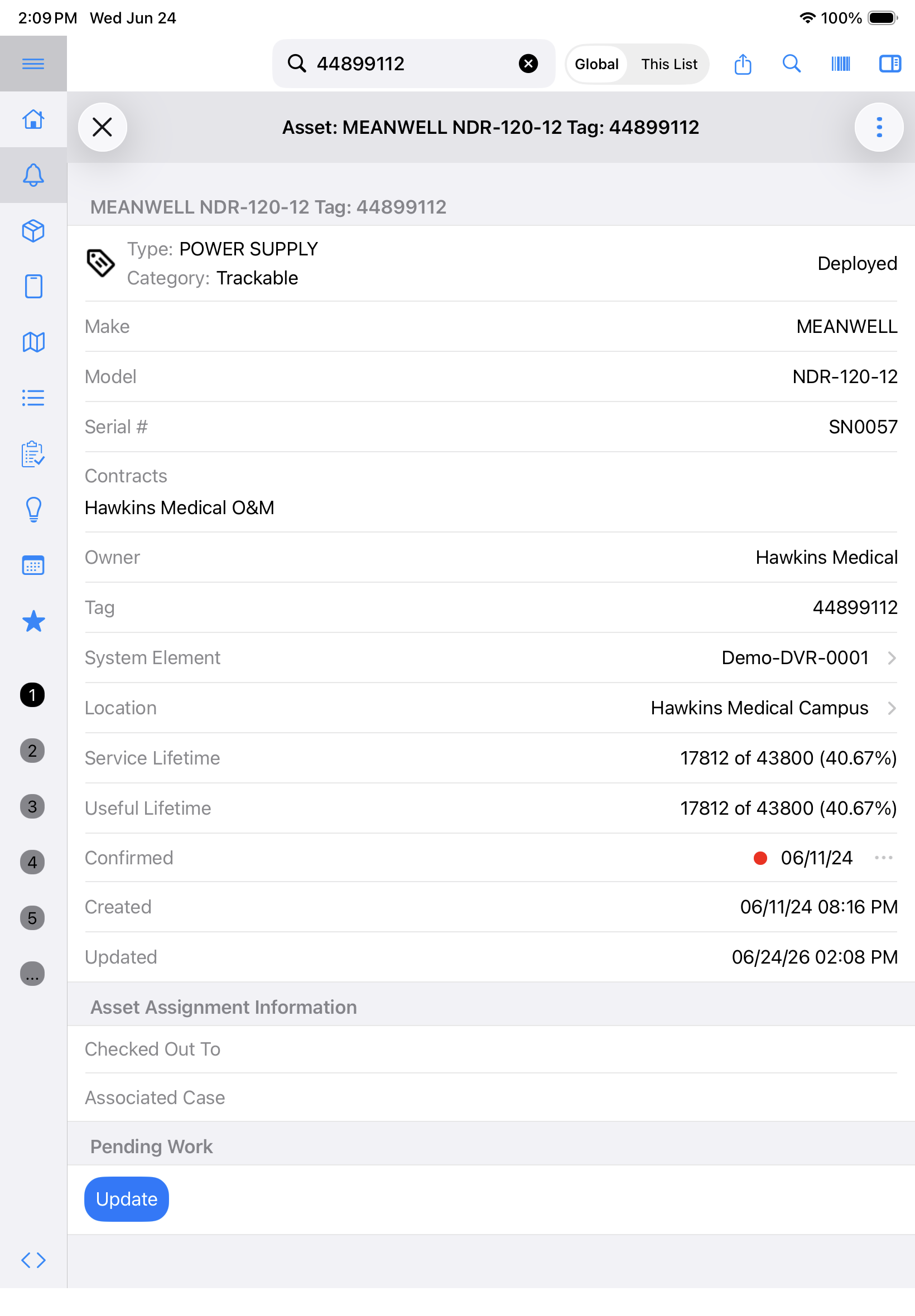
When asset tag/barcode labels are affixed to installed equipment, your project team has near-immediate access to full equipment details, including manufacturer, model, serial number, service time, open work, and more.
Scan to access equipment details and open work:
- Sign into the InfraLink Mobile app.
- Tap the barcode icon in the top right corner of the screen.
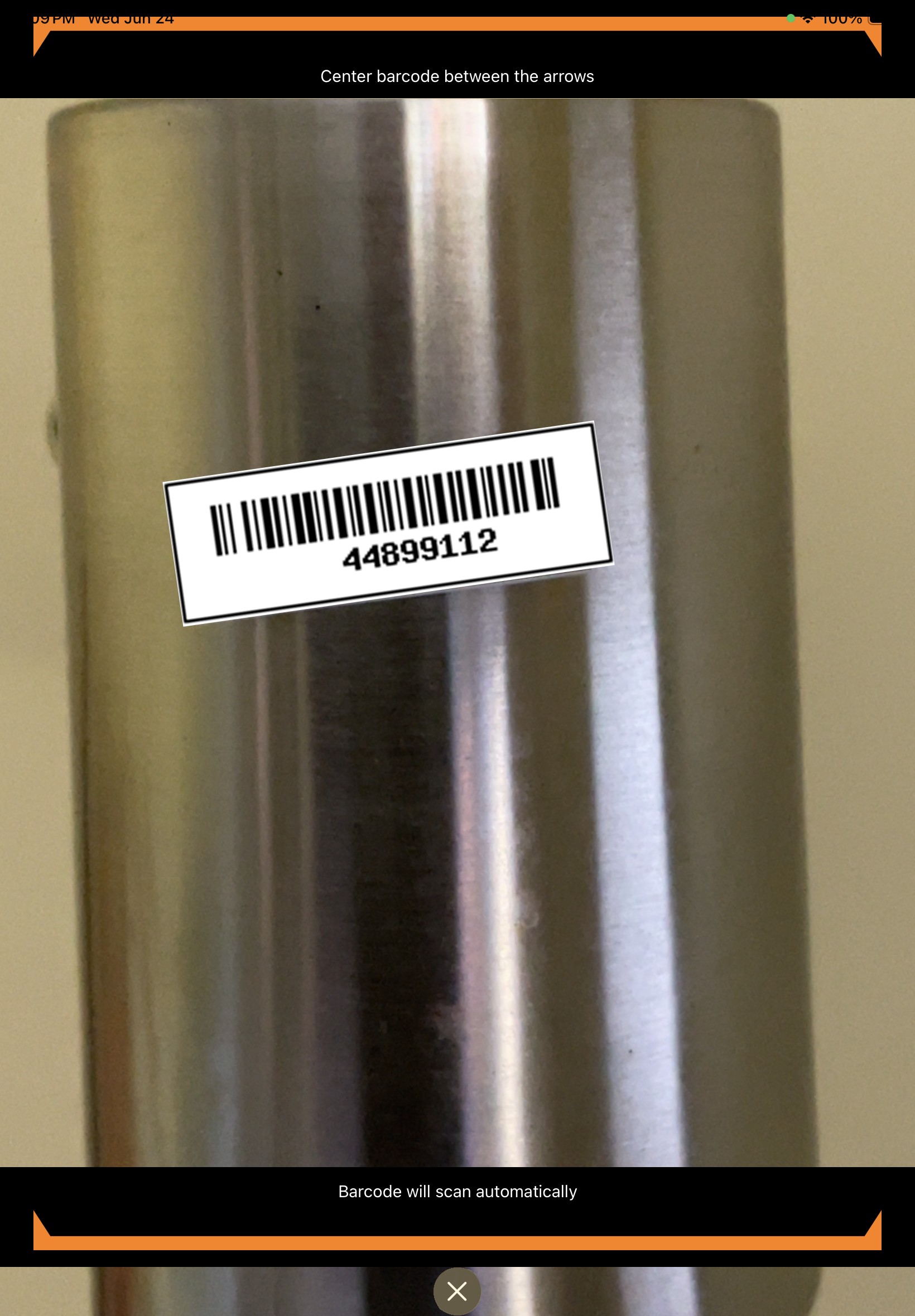
- The application will access the device camera. (Adjust device Settings as necessary to allow this.)
- Scan the equipment barcode label on the installed device.
- InfraLink will locate and display the matching Asset record details.
- From the Asset record details, tap the System Element link to access open work (e.g., Maintenance Tasks, Cases, etc.)
Confirm In-Stock Inventory
When barcode labels are affixed to new equipment at the time of receipt and entered as the Asset Tag value in InfraLink, the asset management team can use InfraLink Mobile app to scan and confirm in-stock inventory.
Scan to confirm in-stock inventory:
- Sign into the InfraLink Mobile app.
- Tap the barcode icon in the top right corner of the screen.
- The application will access the device camera. (Adjust device Settings as necessary to allow this.)
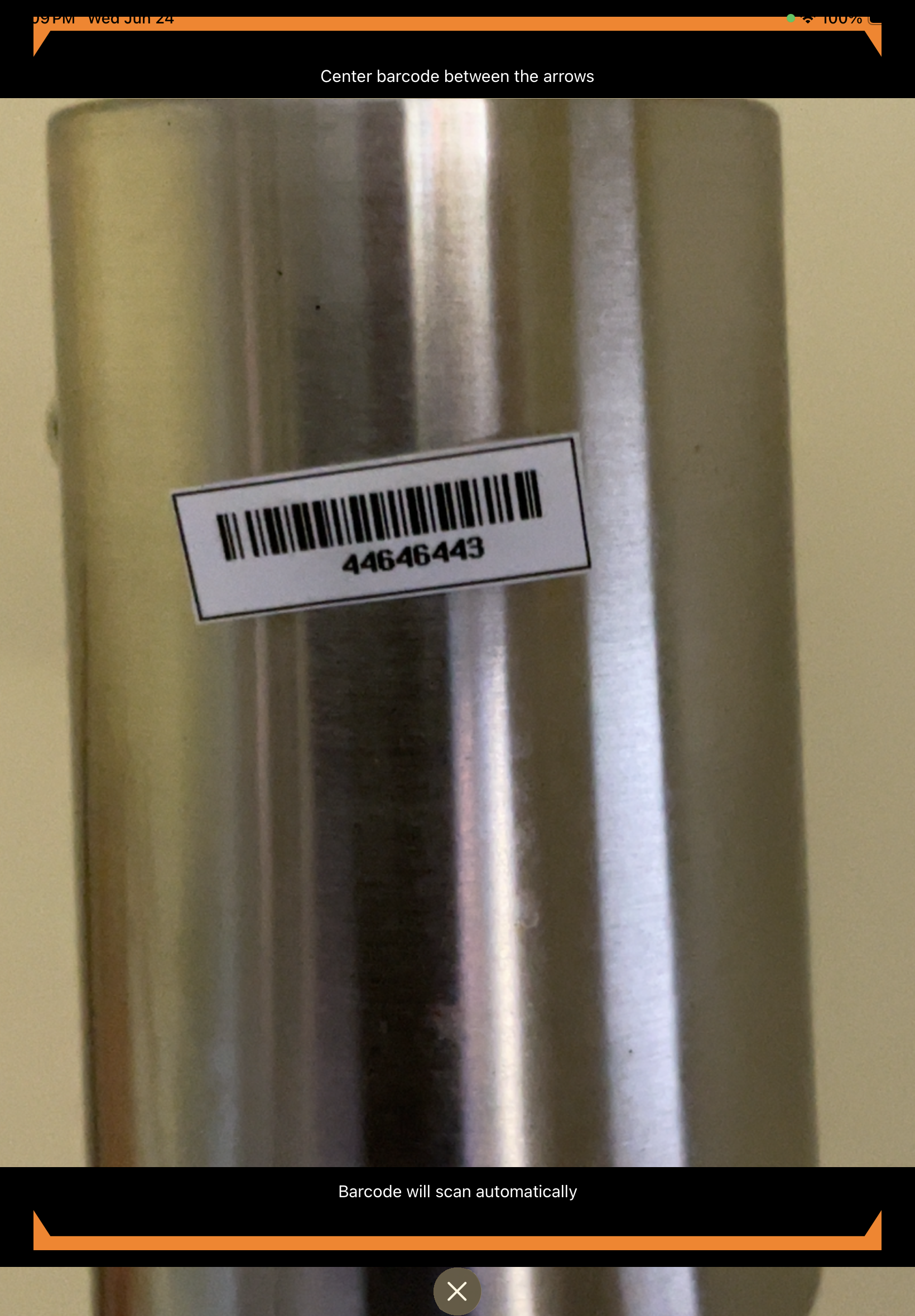
- Scan the equipment barcode label on the inventory item
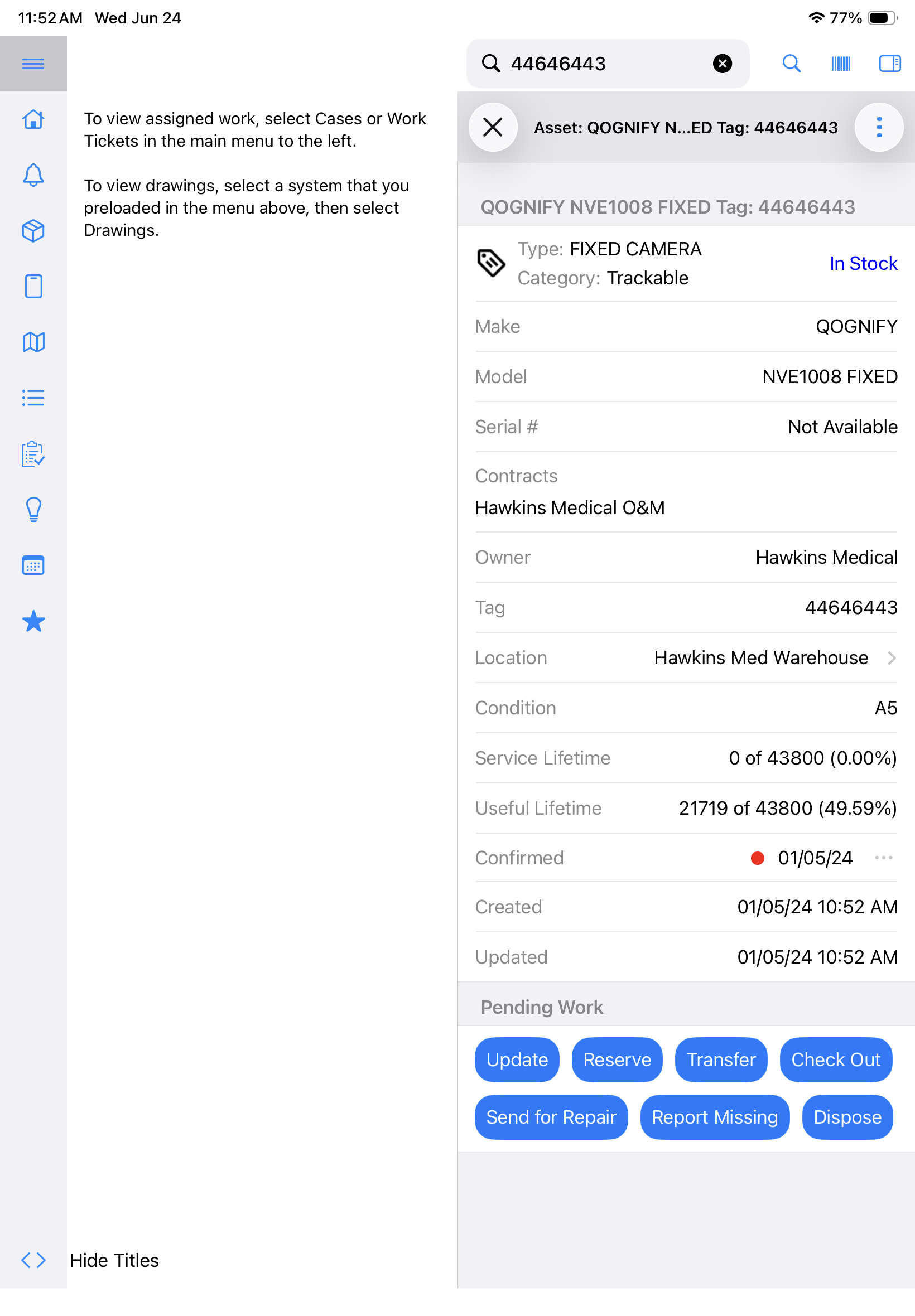
- InfraLink will locate and display the matching Asset record.
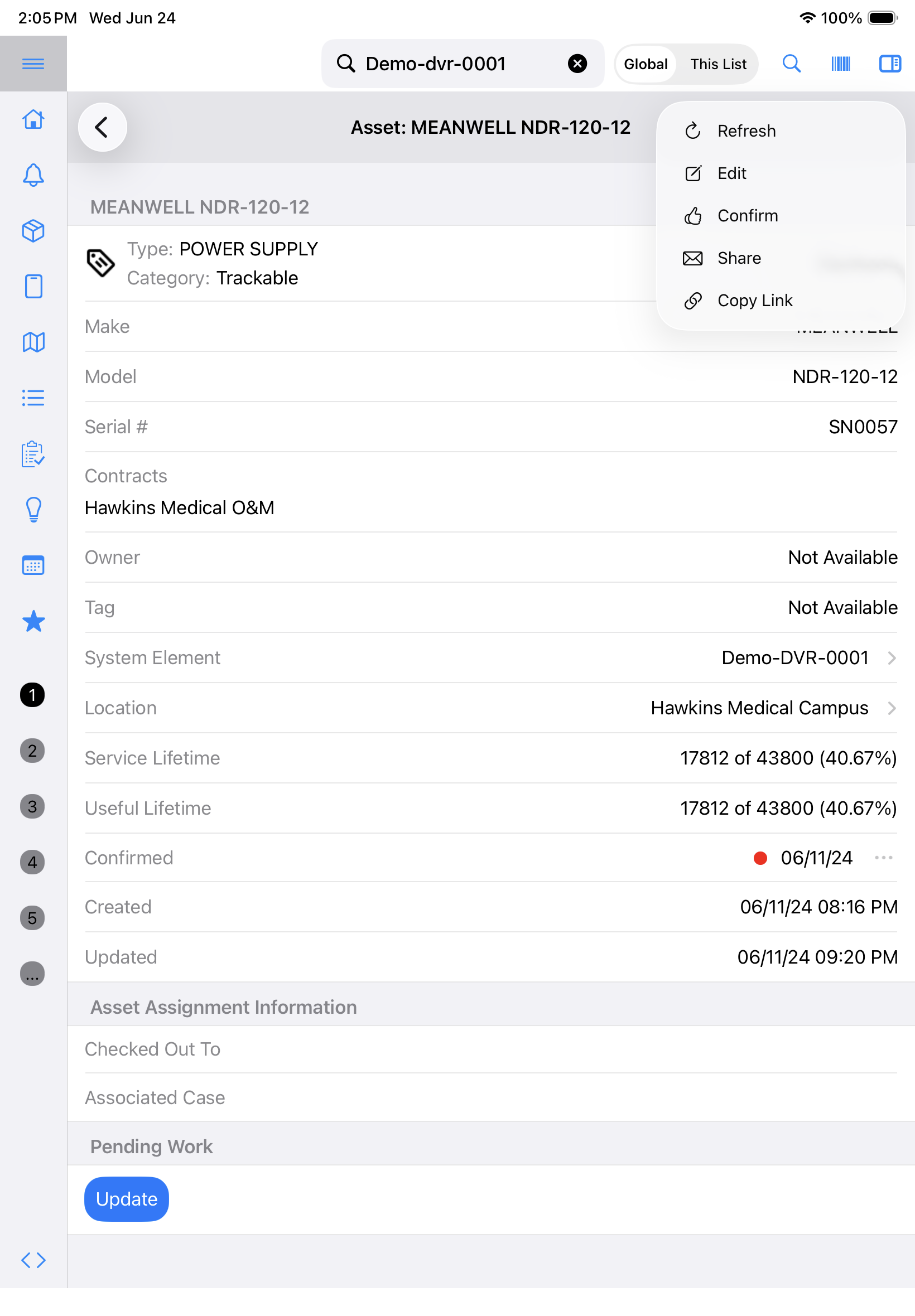
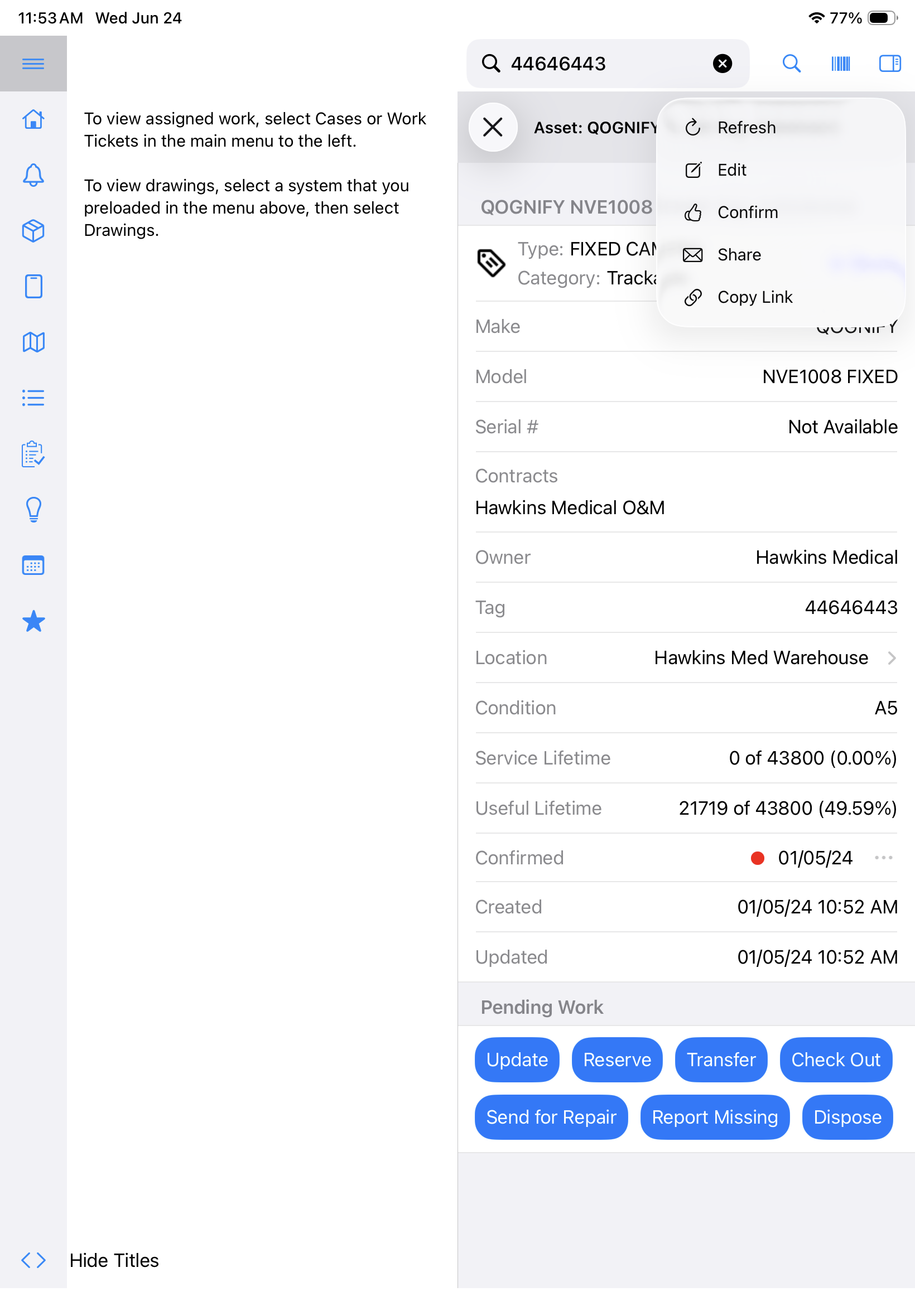
- Confirm the record details (e.g., model, status, location, etc.) match shelved item and then tap the Asset action menu (i.e., hamburger, three vertical dots) in the top right corner of the Asset details panel.
- From the dropdown, tap Confirm.
- Note the updated "Confirmed" date on the Asset record.
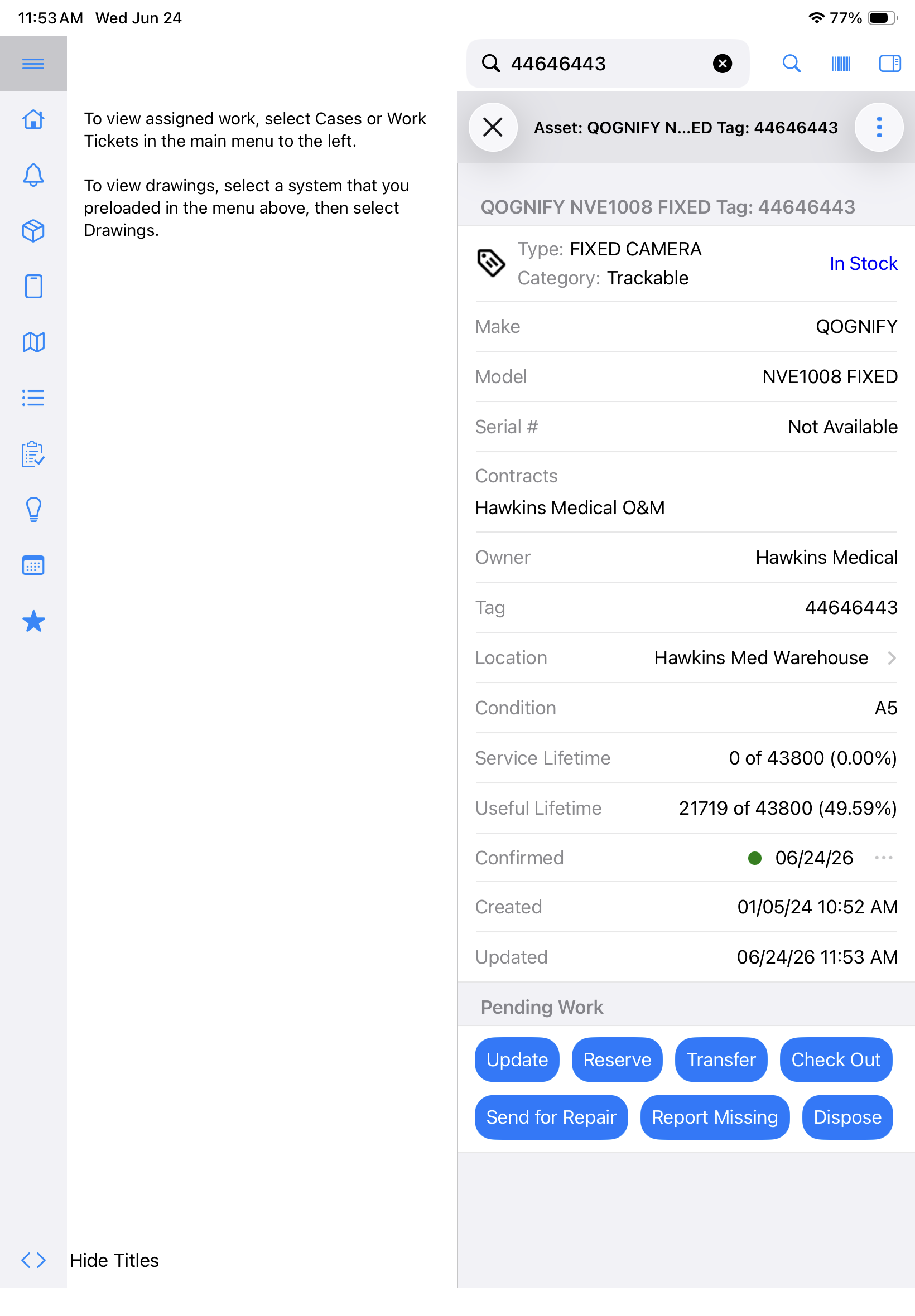
- Note: Use Saved Views and/or Scheduled Exports to quickly identify in-stock Assets with aging "Confirmed" dates.
Scan-to-Tag Functionality for Previously Installed Equipment
Whether your team is implementing a new asset tagging system or performing surveying sites at the start of a project, users can label and log previously-installed equipment using InfraLink mobile.
Scan to add new Asset Tag value to previously installed equipment:
- Locate the installed device on the project/operational site.
- Affix a new asset/barcode label to the device. Position it for clear visibility and ease in future scanning.
- Using the InfraLink Mobile app, locate the associated Asset record.
- Note: Teams often coordinate asset tagging efforts with the next scheduled maintenance activities.
- If working on a PM Task, the associated System Element name and status will be positioned at the very top of the Task details.
- Tap the System Element name to open its details.
- From the System Element details, tap the Asset Tag field to open the Asset record details.
- Tap the Asset action menu (i.e., hamburger, three vertical dots) in the top right corner of the Asset details panel.
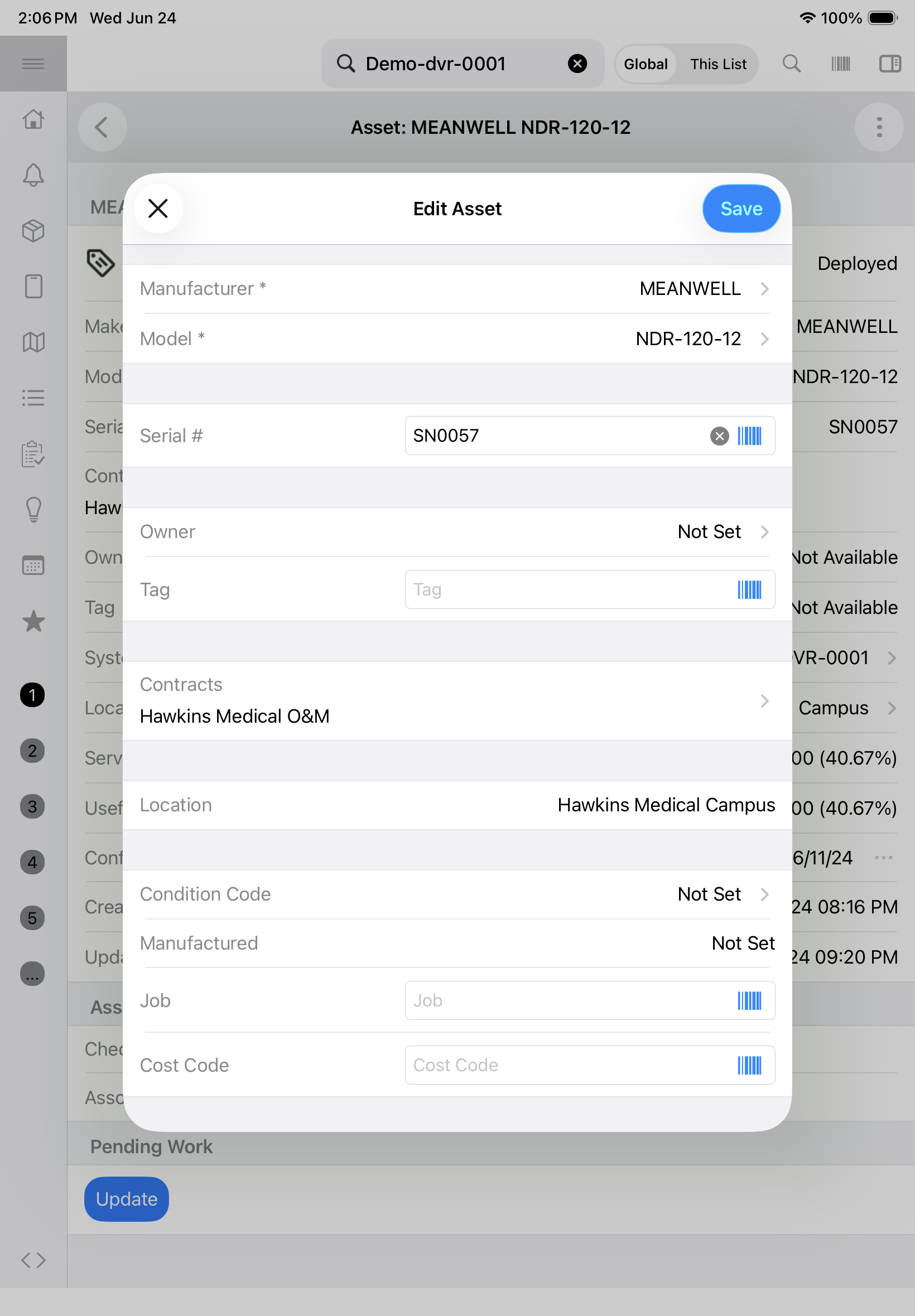
- Tap Edit.
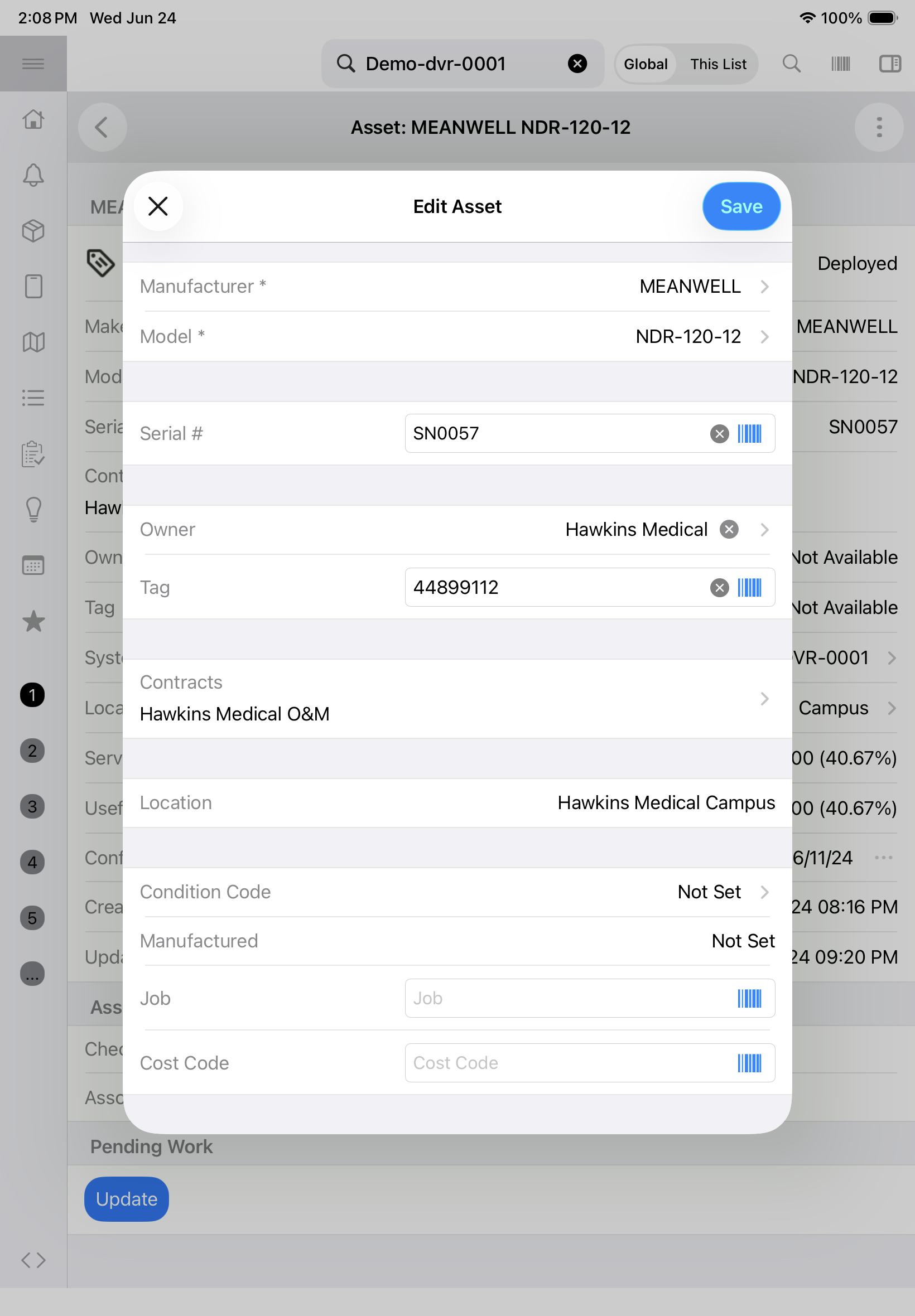
- Update the Asset Tag value.
- If the Asset Tag field is empty:
- Populate the equipment Owner field, if also empty.
- Tap the barcode icon located to the far-right side of the field.
- Use the device camera to scan the newly installed asset/barcode tag.
- Tap Save in the top right corner of the window.
- If the Asset Tag field is populated with old/outdated/placeholder value:
- Tap the "X", to the far-right side of the field, to clear the existing value.
- Tap the barcode icon located to the far-right side of the field.
- Use the device camera to scan the newly installed asset/barcode tag.
- Tap Save in the top right corner of the window
- If the Asset Tag field is empty: