InfraLink Notification Banners display administrator-defined messages just below the top-level navigation bar. A banner advises users of information or warnings related to the project/program or the InfraLink instance.
More than one Notification Banner may be active at any given time. InfraLink will rotate the banner display at a set interval. Banners are ordered by the creation timestamp, and displayed in descending order (i.e., the most recently created banner is displayed first). Once Users have read the message, they can remove the notification by clicking the "X" to the right of the banner. This action is logged as the Users' acknowledgement.
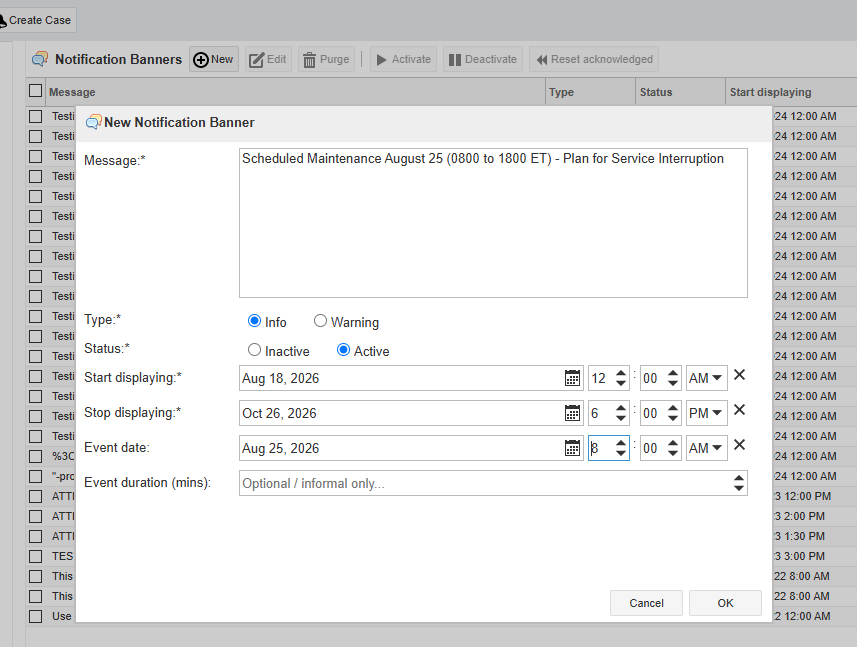
When configuring a Notification Banner via the New Notification Banner form, the administrator must define the banner message, type of notification (i.e., info or warning), banner status (i.e., inactive or active), date and time the banner will start displaying and date and time the banner will stop displaying. Because administrators configure the banner duration, there is no need to manually disable or remove outdated messages.
Creating a Notification Banner
To create a Notification Banner:
- From the Configure menu, select Notification Banners.
- Populate the required ( * ) fields
- Message - Enter the message as you wish it to appear in the banner.
- For the best display on various monitor sizes, keep your message under 175 characters.
- Type - Select Info (blue banner, black text) or Warning (green banner, orange text)
- Status - Select Active
- Start Displaying - Enter the date and time the banner should start displaying.
- Stop Displaying - Enter the date and time the banner should stop displaying.
- Message - Enter the message as you wish it to appear in the banner.
- Click OK.
Your active banner will automatically display, to all users, according to the set schedule.
Notification Banner Configuration