Users with adequate Permissions can create new Asset records. Certain fields values (e.g., Manufacturer, Model) depend on global dictionaries which are defined by the Instance Administrator.
Accessing Asset Records
Access Asset records and create new Assets from the All Assets or Spares grid views, both accessible from the Main Menu.
Creating Trackable Assets
Users with adequate Permissions can create new Asset records.
Global Dictionaries
Certain fields values (e.g., Manufacturer, Model) are required for Asset record creation and depend on global dictionaries, which are defined by the Instance Administrator.
To create a new Trackable Asset:
- From the Main Menu, select All Assets under the Materials Management
- Select the New button from the top of the grid view.
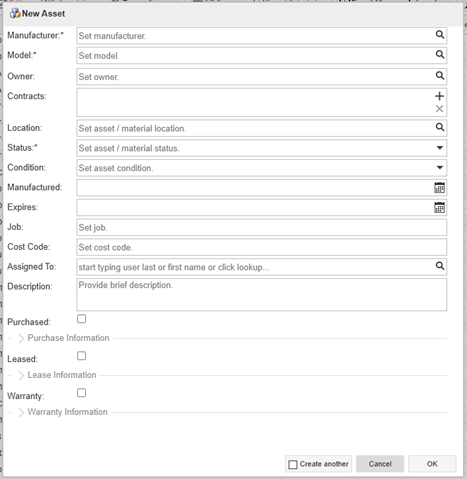
- The New Asset form will be presented. Populate all known and/or required fields:
- Manufacturer – Select from the available list of manufacturers
- Manufacturers are globally defined by the Instance Administrator.
- Model – Select the correct Model available from the selected Manufacturer.
- Models are globally defined by the Instance Administrator.
- Serial Number – Field revealed after Model selection; Enter the correct Serial Number for the hardware/device.
- Tag – Field revealed after Model selection; Enter the Asset Tag number if one applies
- See Related Page link below for information on Asset Tag barcode support via the InfraLink Mobile application.
- Owner – Indicate the equipment/asset owner; Required if a Tag value is entered.
- Contracts – Select the Contract(s) for which the new Asset should be available.
- Location – Select the correct Warehouse/Storage Location for the Asset.
- Status – Select the correct non-deployed status for the Asset.
- Condition – Select the condition which reflects the current condition of the equipment/device.
- Manufactured – If known, enter the manufactured-on date.
- Expires – If applicable, enter he Expires date (not common)
- Job – Skip this
- Cost Code - Skip this
- Assigned To – If the Asset was requested by an individual or is being reserved for an individual, select that User.
- Description – Provide a brief description of the equipment/device (optional)
- Manufacturer – Select from the available list of manufacturers
- Add details under the Purchased, Leased and Warranty sections, if known/applicable.
- Select OK.
New Asset Form
Editing Trackable Assets
Certain attributes of an Asset can be edited after the Asset record is created. NOTE: This feature should be used to correct or update information about the same physical device for which the original Asset record was created.
Important Note: If one physical asset is being uninstalled from a System Element and a new physical asset installed at that Location, use the System Element workflow (i.e., widgets within the System Element details panel or within a Case update form) to track those install/uninstall/replace actions. An Asset Edit is inappropriate for those scenarios.
To edit an Asset record:
- From the Main Menu, select All Assets under the Materials Management
- Apply filters and/or search criteria to locate the desired Asset record.
- Select the Asset record.
- Select the Edit button from the top of the grid view, or select the pencil from the Asset details panel.
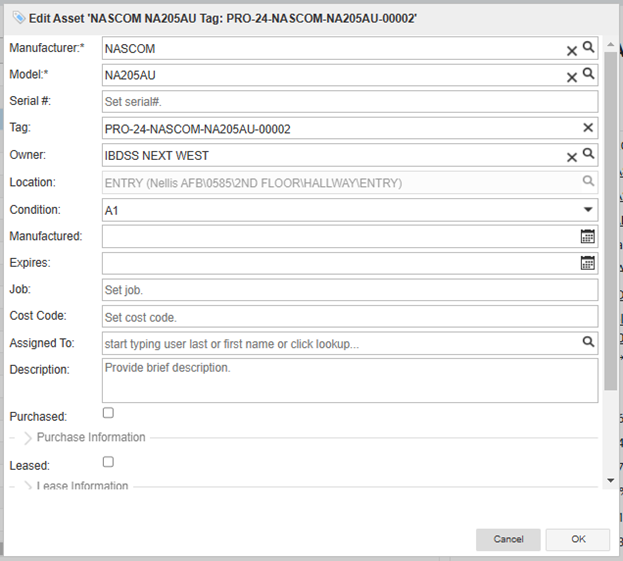
- Make the desired changes to details within the Edit Asset form.
- Select the OK button at the bottom of the form to save your changes.
Edit Asset Form
One Dedicated Asset Record per Device
Any edits to an Asset record should relate to the original hardware/equipment/device for which the Asset record was created. Do not edit an Asset record to reflect details of a new/different/replacement device. In this scenario, a new Asset record should be created for the new device.
Changes Involving Asset Deployment
Any actions which move an Asset record into our out of the Deployed status must be initiated the associated System Element record. This can be accomplished using the status transition widgets (e.g., Install, Replace) from the System Element details panel, or possible, during a Case update.
Consult F-DIMS Contractor Training Materials for more detail.
Deleting Trackable Assets
Asset records should not be deleted in F-DIMS/InfraLink system.
Assets follow a life cycle in InfraLink, moving from one appropriate status to the next. When a physical asset is no longer useful, the associated Asset record should be properly dispositioned in InfraLink.
When physical assets are discarded, the associated InfraLink Asset records should be transitioned to the Disposed status
Note: Disposing an Asset record is a final transition. This action is irreversible. Please be sure of desired outcome before initiating a disposal transition.
Bulk Asset Entries
At the time of InfraLink Instance deployment Assets can be entered into InfraLink by importing a data set from an external procurement management application. Additionally, bulk updates to existing InfraLink Assets can be accomplished in the same manner. Administrative User Permissions are required for these functions.
See Assets Import for more information.
Scenario-Specific Behaviors
A User with sufficient User Permissions may initiate the New Asset or Edit Asset functions from a variety of points within InfraLink. The approach used will vary based on the various operational scenarios. Depending on the particular scenario, the behavior of the Add Asset and Edit Asset function is tailored as outlined in the following table:
Specific Use Case | Behavior, Notes | Specific Permissions Required |
|---|---|---|
From the All Assets view, the User selects the “New” Asset button to enter an Asset. | This is a basic operational scenario. No additional tailoring or restrictions apply. | Create Asset (Global or contract-specific) See the additional Associating Assets with Contract(s) business rules above. |
From the All Assets view, the User clicks on an existing Asset, and then selects the “Edit” Asset button. | This is a basic operational scenario. | If the Asset Status is not set to "Deployed", the User must have the Edit Asset User Permissions for at least one of the Contracts associated with the Asset. If the Status of the Asset is set to "Deployed" the User must have both the "Edit Asset" and "View System Element" User Permissions for at least one of the Contracts associated with the Asset and the corresponding System Element. (i.e., User cannot edit an Asset without being able to see the System Element it is associated with.) |
While viewing the Location Details panel for a Storage/Warehouse Location, the User selects "New" Asset button. | The selected Storage/Warehouse Location becomes new Asset’s Location. | Create Asset (Global or Contract-specific) |
From the System Element Details panel with an existing Asset association, the User selects the “Edit” Asset button. | The Edit Asset form opens allowing User to edit the Asset information. | The User must have both the "Edit Asset" and "View System Element" User Permissions for at least one of the Contracts associated with the Asset and the corresponding System Element. |

